Run it on a server
Run the coach in Docker Compose on a small home server, with the daily job, encrypted backups and access from your phone through a private network.
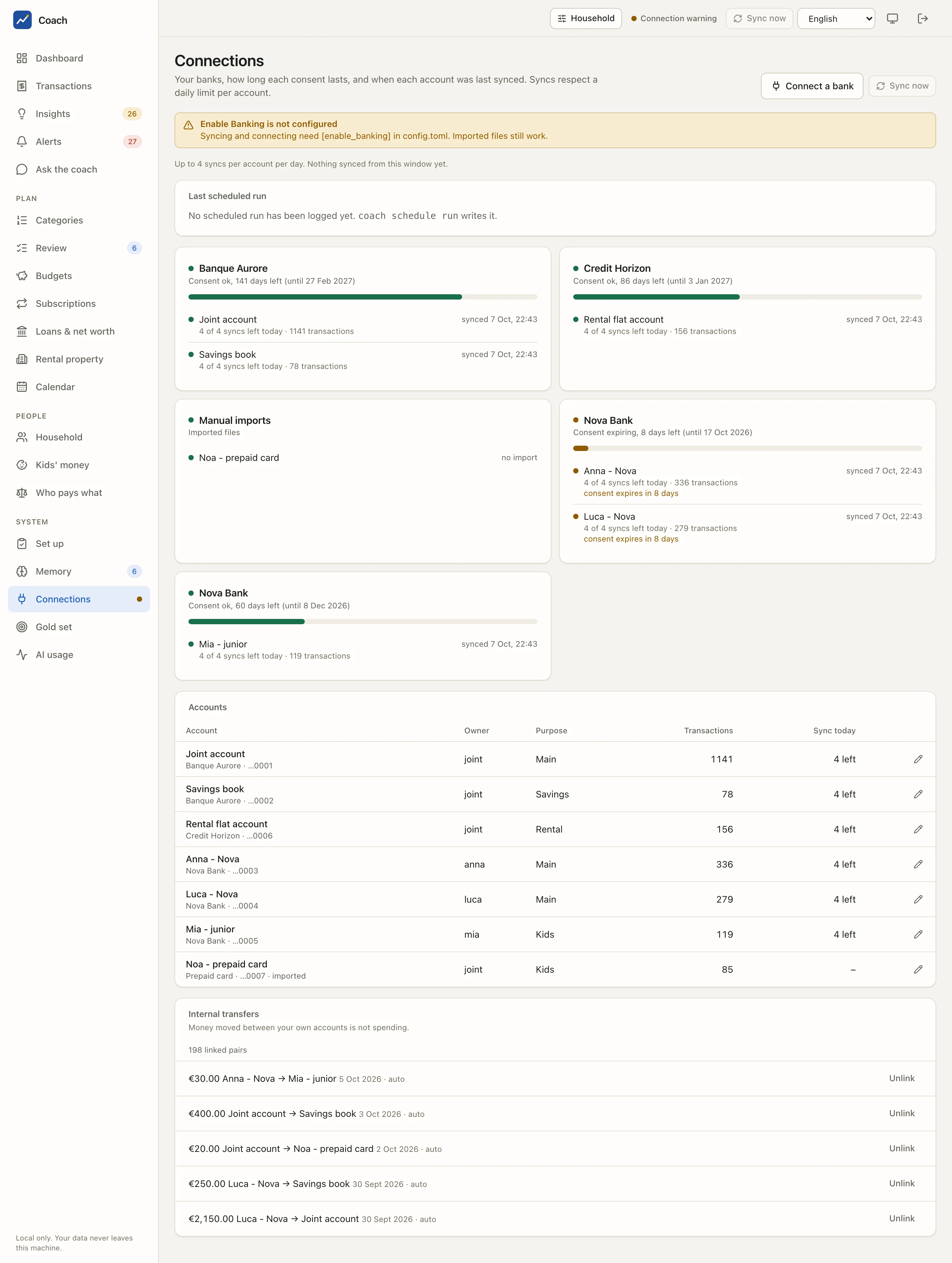
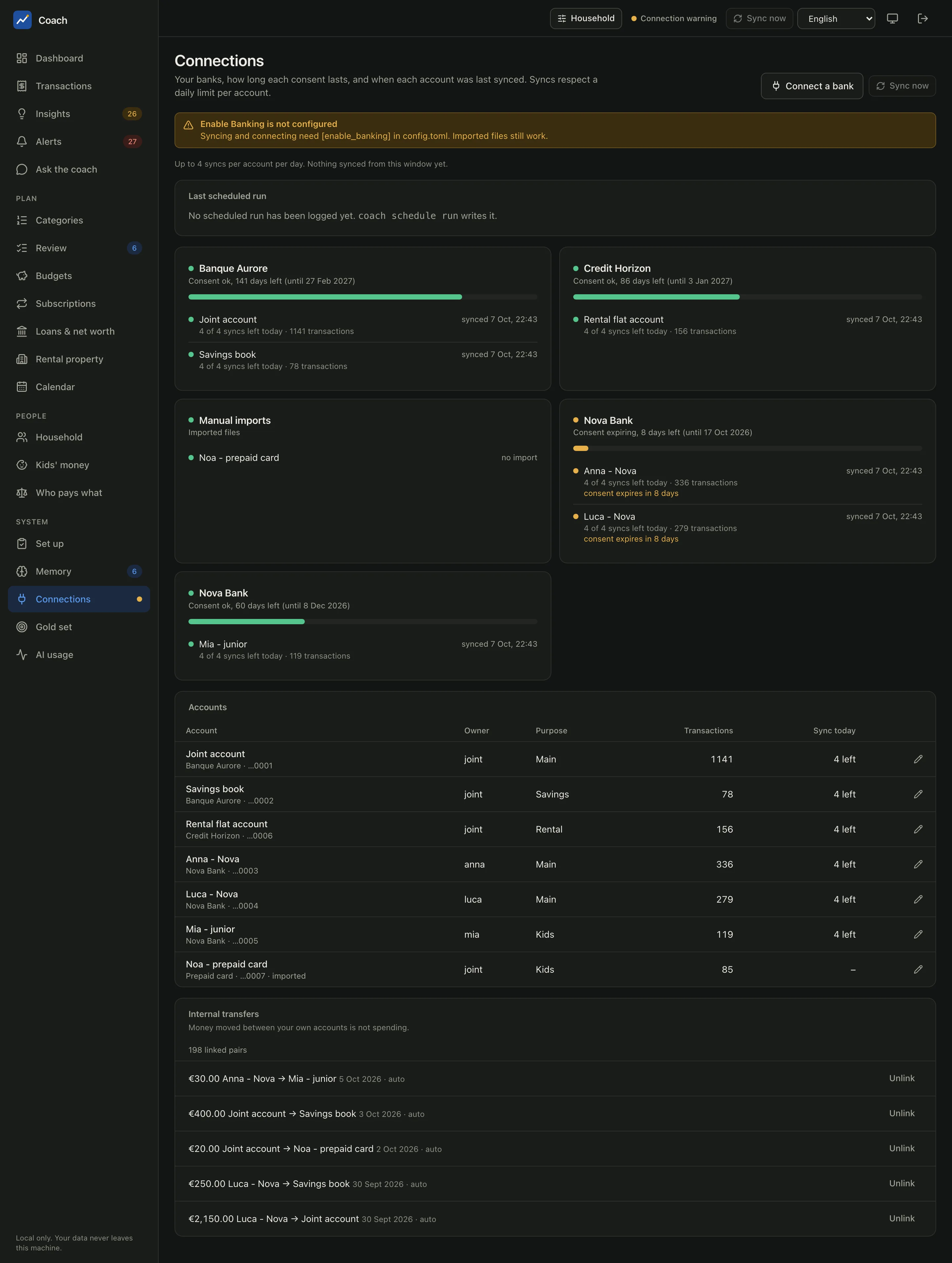
The layout
Everything lives in one folder next to docker-compose.yml. Both data folders are git-ignored and Docker-ignored.
| On the host | In the container | What |
|---|---|---|
coach-home/data |
/data |
encrypted database, logs, TLS certificate, web-app state |
coach-home/memory |
/memory |
the household memory (your files) |
coach-home/config |
/config |
config.toml, your taxonomy and rules copies, CSV import profiles |
secrets/ |
/run/secrets (read-only) |
db_key, backup_key, proposal_key: one file each, mode 0600 |
Set it up as in Install ("Docker Compose" tab), then export COACH_UID=$(id -u) COACH_GID=$(id -g) every time you run
compose, so the files stay yours.
docker compose run --rm coach setup enablebanking
docker compose run --rm coach setup
docker compose up -d                                 # the web app on http://127.0.0.1:8765
cat coach-home/data/login-link.txt                   # the one-time login link
Why the login link is in a file
Anyone who can read docker logs could use a link printed there. So a container without a terminal writes it to login-link.txt
(mode 0600, replaced at each start). docker compose exec coach coach ui --login-link prints a fresh one to your terminal.
The app stays on 127.0.0.1
The compose file publishes the app as 127.0.0.1:8765:8765: the server's loopback only, never its network interfaces. Inside the
container the app listens on all interfaces, which it accepts only when it really runs in a container and the configuration says
[ui] container_bind = true (written by the image's coach init only).
Never publish a bare port
-p 8765:8765 or 0.0.0.0:8765 would put your whole financial life on every interface of the server. coach dev release-check
fails when the compose file or the docs show a published port without 127.0.0.1.
Reach it remotely, through a private network only
Use Tailscale or a VPN in front of the loopback port. Never open the app to the internet.
-
On the server, put Tailscale's HTTPS in front of the loopback port:
-
In
coach-home/config/config.toml: -
Restart (
docker compose up -d) and open the new login link. It now starts withhttps://<first allowed host>/login#t=..., and sessions useSecurecookies.
Tired of the link? Two opt-in ways in, both documented in Remote access: passkeys ([ui] passkeys = true:
enrol the phone once from a session, then Face ID or Touch ID opens it) and, when the server already runs a reverse proxy with
authentik forward-auth, SSO ([ui] sso = "authentik": the app verifies authentik's signed token and opens the mapped login by
itself). An authentik proxy provider signs its token with its client secret (it has no signing key): set sso_signing = "client_secret" and
store that secret as sso_client_secret (a Docker secret file). Put the coach container on the proxy's network in a
docker-compose.override.yml, without publishing any other port.
All three settings are required together: allow_remote alone is refused, so a typo cannot expose the app over plain HTTP.
The daily job
The scheduler service runs coach schedule loop: once a day at [schedule] time it syncs within the PSD2 limits, normalizes,
classifies with your backend, refreshes the analytics and the net worth, evaluates the local alerts and runs the weekly checks.
- The container clock is usually UTC: set
TZto run it at your local time. - A restart does not catch up a missed run (
--run-nowdoes). A failing run is logged and the loop goes on. - Connections shows the last scheduled run;
docker compose run --rm coach logsshows the details.
Backups
A backup is an encrypted archive (AES-256-GCM, key derived from backup_key) of the database and the memory, written to [backup] dir,
relative to the folder of config.toml. Only the newest [backup] retention archives (14 by default) are kept, and each new archive is
decrypted and checked before old ones are pruned. The daily job does not take backups: run the command from the host's own scheduler
(cron or a systemd timer) and copy the archives off the server.
coach restore FILE --to DIR writes the database and the memory into DIR only; moving them back into place is a manual step, on
purpose. Delete the restored copy once you have checked it.
Back up secrets/ separately
Keep db_key and backup_key in your password manager, never next to the backups. A restored database still needs the db_key
that was in use when the backup was taken.
Updates
Database migrations apply by themselves the first time the new version opens the database, after writing a safety copy
(*.pre-migrate-<timestamp>.bak). Take a backup before a big upgrade.
Model backends in a container
There is no Keychain in a container: keys are secret files or environment variables.
The image's default backend. Add a fourth secret file secrets/anthropic_api_key and list it under secrets: in the compose file,
or pass ANTHROPIC_API_KEY from your shell or a git-ignored .env file.
OpenRouter, Eden AI, vLLM. Set backend = "openai-compatible" under [llm] and [coach], plus [llm] openai_base_url
(OpenRouter by default) and [llm] openai_model (the provider's model id; the coach needs one with tool calling). Store the key with
docker compose run --rm coach config set-secret openai_api_key. On OpenRouter, requests ask for providers that do not store or train
on prompts.
Set both backends to "ollama" and [llm] ollama_url to a server the container can reach, for example
http://host.docker.internal:11434. That is not the container's loopback, so it also needs [llm] ollama_allow_remote = true, and
[privacy] local_only = true refuses it.
Your Claude subscription, opt-in. Build the CLI into the image (--build-arg WITH_CLAUDE_CODE=1, a pinned version checked against
a pinned hash) or, on a Linux host, mount the host's own binary read-only. Run claude setup-token on your computer, save the token
as secrets/claude_code_oauth_token (mode 0600) and add it to the secrets lists in a docker-compose.override.yml. Then set
backend = "claude-code" under [llm] and [coach], rebuild, and check with docker compose run --rm coach doctor.
A subscription is meant for personal, interactive-scale use: a daily classification and the opt-in digests are the most it should carry. The full override file is in Docker.
Security posture
| Control | Setting |
|---|---|
| Non-root user | 10001 by default, or your own uid / gid |
| Read-only root filesystem | read_only: true, /tmp is a tmpfs |
| No extra privileges | cap_drop: [ALL], no-new-privileges, no privileged mode, no host network, no Docker socket |
| Loopback only | 127.0.0.1:8765:8765; the bank redirect port only during connect, on 127.0.0.1:8443 |
| Secrets from files | read-only mount, refused when writable by others |
Treat the docker group and the Docker socket as root on the host: whoever has them can read your data. Run
docker compose run --rm coach security audit now and then.
See also
- Docker: every detail of the image, the secrets and the backends
- Remote access and Daily job & backups
- Security: threat model and residual risks
- Connect your banks: linking a bank from a container