Mobile & PWA
proton·faces is a progressive web app. The same single-page app you use in a desktop browser installs to your phone's home screen, launches full-screen with no browser chrome, and keeps working when the network drops. There is no separate mobile app to build, ship, or update — the PWA is served by your own instance.
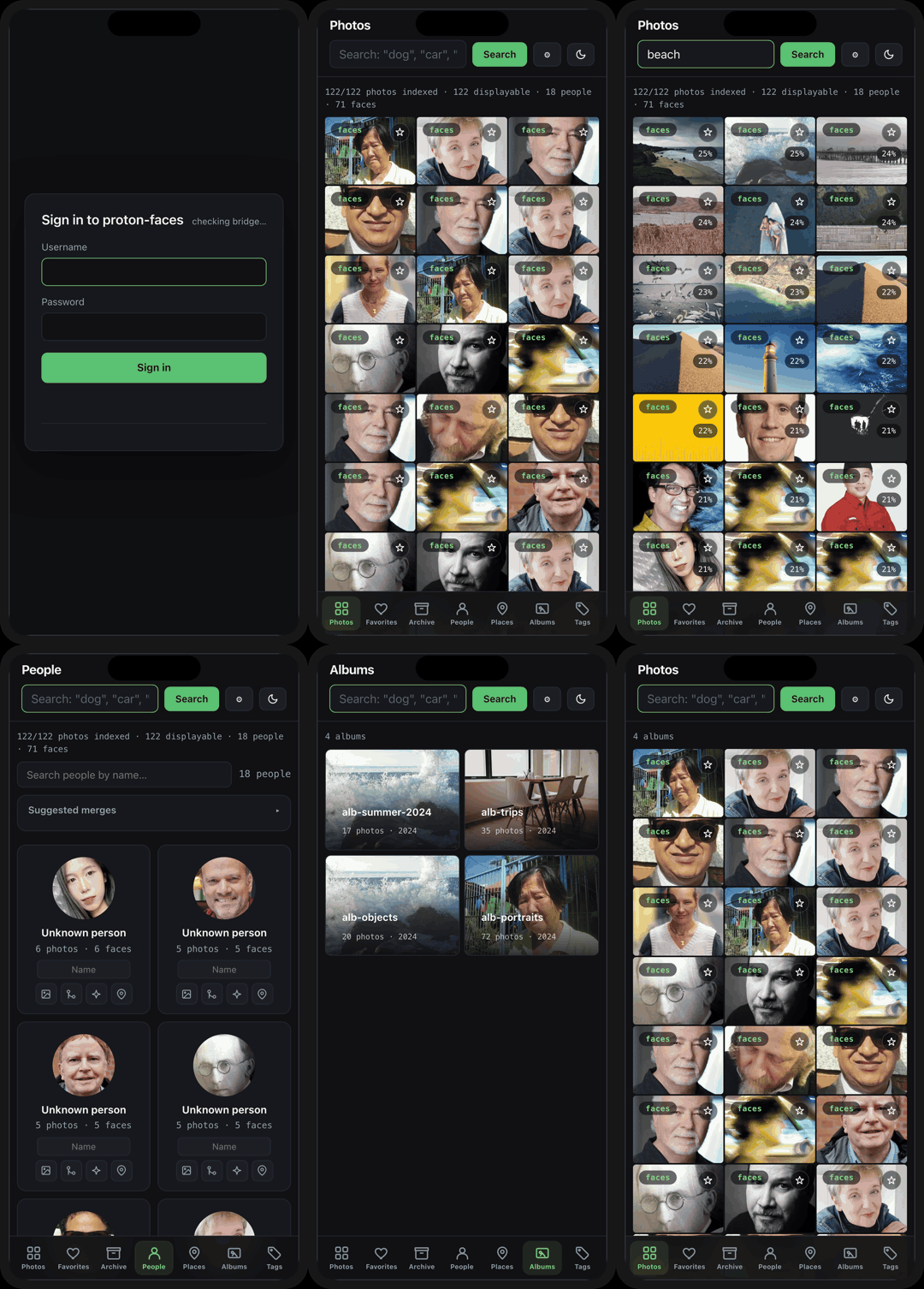
Install on your phone
The install flow is the standard one for each platform. You only need to do it once per device; the app updates itself afterwards.
- Open your instance in Safari (e.g.
https://faces.example.com). - Tap Share → Add to Home Screen.
- Name it (defaults to
proton·faces) and tap Add.
The icon appears on your home screen and launches the app in standalone mode — no address bar, no Safari chrome.
- Open your instance in Chrome.
- Tap the ⋮ menu → Add to Home screen (or Install app).
- Confirm the install prompt.
Android also shows an install banner the first time you visit, because the manifest declares display: standalone.
- Open your instance in Chrome or Edge.
- Click the install icon in the address bar (or ⋮ → Install proton·faces).
- The app opens in its own window, with its own taskbar entry.
What you get
- Standalone launch — the app opens in its own window with the
proton·facesname and icon, no browser UI. - Offline app shell — the login screen and app frame are cached by the service worker (
pf-shell-v1), so the app opens even with no connectivity. Your photos and search results are never cached — every/api/*and/thumb/full/cover/croprequest goes straight to the network, so your private data is never stored on the device beyond what the browser already holds in memory. - Dark & light themes — the app follows your system
prefers-color-scheme; the installed PWA's splash screen and status bar match (#101114dark,#f4f5f7light). - Safe-area aware — the bottom navigation respects the iPhone home indicator and Android gesture bar via
env(safe-area-inset-bottom).
The mobile layout
Below 940px the app switches to a phone-first shell:
- Bottom navigation — Photos · Favorites · Archive · People · Places · Albums · Tags sit in a fixed bottom bar, thumb-reachable. Duplicates and Unassigned are hidden on phones (they're admin/cleanup tools; use a desktop browser for those).
- Search bar — moves to its own row under the header, full width, with a larger tap target.
- Photo grid — three columns, edge-to-edge, with the date/place pills dropped from each tile (full metadata lives in the detail sheet).
- Detail sheet — opens as a full-screen sheet with a sticky header; the photo fills the top half, metadata scrolls below.
- Face search (
Search by example) is hidden on phones — upload a face photo from a desktop browser.
Tips
- Add to Home Screen before you need it — the offline shell only helps if the app is installed and has been opened once while online.
- The status bar is hidden on phones — bridge and indexer health are still visible in the Status & diagnostics overlay (
?in the footer, or the gear icon for admins). - 2FA works on mobile — enroll from Status & diagnostics → Security and use your authenticator app; the 6-digit code field appears automatically at login.
- Session persistence — the refresh token lives in an HttpOnly cookie, so closing the app doesn't log you out. See Security & privacy for how tokens work.
Under the hood
manifest.json— name, icons (192/512,any+maskable),display: standalone, theme colors.sw.js— service workerpf-shell-v1. Caches only the static shell (/, manifest, icons); never intercepts/api/*or binary photo endpoints. Stale-while-revalidate for the shell so updates land on the next load.- The PWA is served by your own instance — there is no third-party service involved, and no telemetry.