Back up, export, erase
Your history lives in one place: an encrypted store in the browser you use. The server that hands out the app holds none of it and cannot back it up. This page is what you can do about that, all in Settings → Your data. How the store is protected is in How it is secured, and every technical detail in Data protection, in detail.
In video
The passphrase, the lock, an encrypted backup, exports and erase.
Your passphrase and the lock
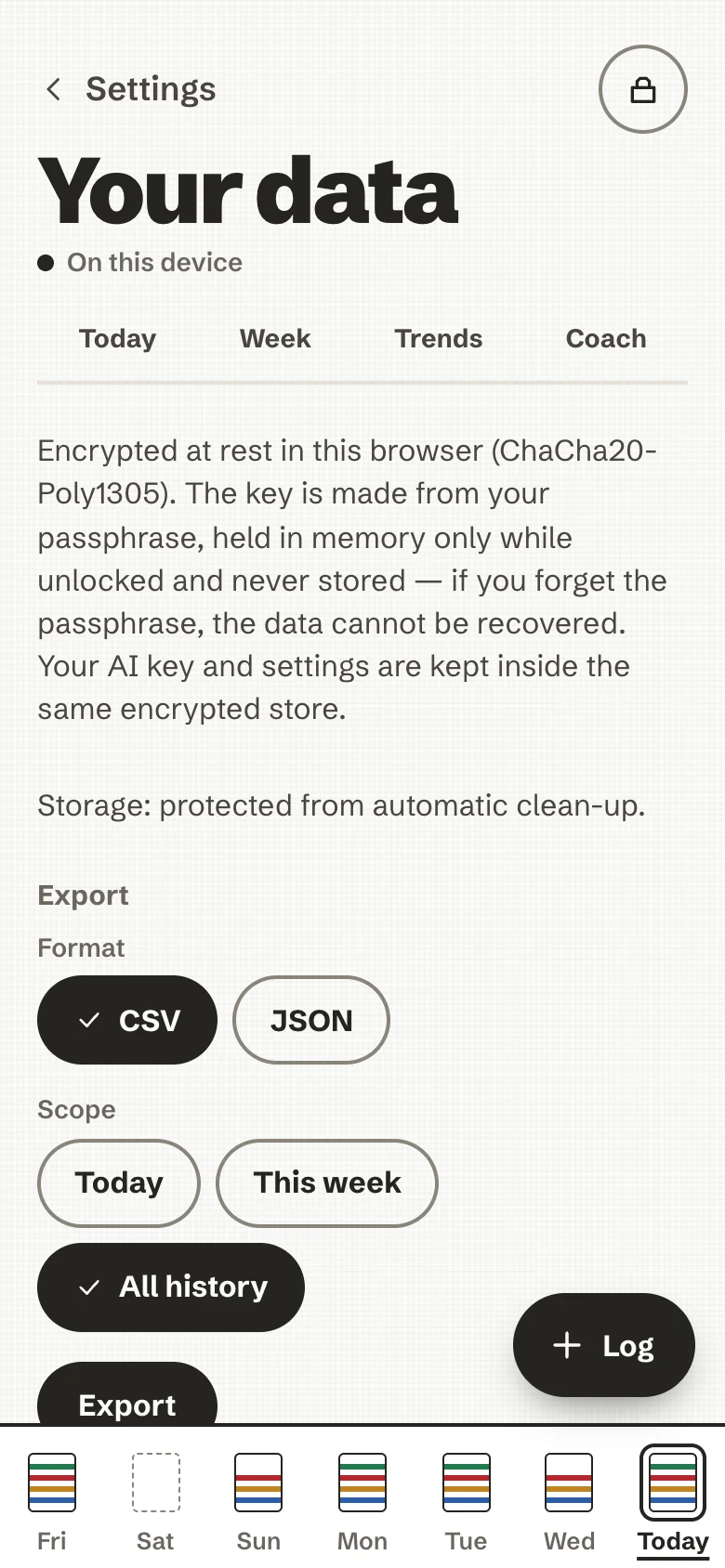
The passphrase you chose on the first screen makes the key that encrypts your store. The key is held in memory only while the app is unlocked, and never written anywhere.
- Lock closes the store at once.
- Lock automatically after 5, 15, 30 minutes or 1 hour without use (15 minutes unless you change it). The app also locks when its page has been hidden for 5 minutes.
- The app opens in one tab at a time; another tab asks you to lock or close the first.
A forgotten passphrase cannot be recovered
There is no copy, no reset link and no escrow: not by the project, not by anyone. The unlock screen offers Erase and start over. If you saved an encrypted backup, you can restore it into the new store with the backup's passphrase. A password manager is a good home for both.
Encrypted backup
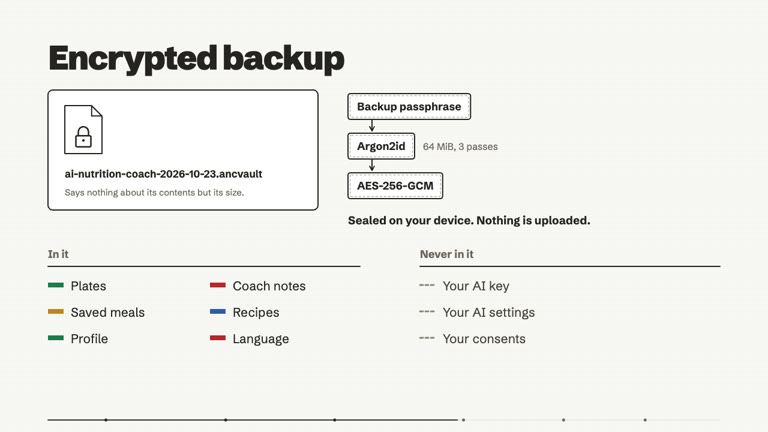
Save an encrypted backup writes one file (.ancvault) to wherever you choose to save it. Nothing is uploaded.
- It holds your plates, coach notes, saved meals, recipes, profile and language.
- It never holds your AI key, your AI settings or your consents.
- It is locked with a backup passphrase you type twice. Using the same one as the app's means one thing to remember; any passphrase works. If you forget it, the file cannot be opened.
- It is sealed with Argon2id and AES-256-GCM, and says nothing about its contents but its size.
The screen notes the date of your last export or backup. When it has been a while, or when you have never saved a copy, a quiet line suggests one, with Set up a backup and Not now.
Restore
Two places, one behaviour:
- in Your data, Restore from a backup on a device you already use;
- on the first screen of a new device or browser, Restore from a backup instead of creating a passphrase. There the backup's passphrase also becomes the one that unlocks the app on this device, so it needs at least 10 characters.
Choose the file, enter its passphrase, and the backup is merged with what is already there. Nothing is removed because it is missing from the file, and a plate you removed before the backup was made stays removed. If the passphrase is wrong, the file is damaged or it is not a backup, the app says so and nothing is changed.
This is also how you carry your history from a phone to a laptop: devices do not sync yet. An encrypted relay for that is planned in the roadmap, and not built.
Export
Export writes your plates as a plain file for your own use: CSV (one row per food) or JSON (plates, profile, saved meals and recipes), for today, this week or all your history. It works offline.
Exports are plain, unencrypted files, and the app says so under the button: keep them somewhere you trust. They cannot be imported back; the encrypted backup is the way back.
Remove one plate, or erase everything
- One plate: open it from Today and choose Remove this plate. It goes from your history on this device, along with its coach note.
- Everything: Erase all local data asks once ("Erase everything on this device?") and then deletes your plates, coach notes, saved AI key and any exports still on this device, for good. It cannot reach a file you already downloaded or shared, or a backup file you saved elsewhere: delete those yourself.
A copy on your server
If whoever runs your server offers it, Back up to this server keeps an encrypted copy there, to restore on a new phone or use on a second device. The server cannot read it. Things to know:
- The passphrase of the copy is its own (it can be the same as the app's, but it is a different thing). It must be long (12 characters, 16 with spaces, or four words of three letters or more) and not a common one, because the person who runs the server could try guesses.
- You are shown a recovery key once. Write it down: with it you can set a new passphrase if you forget the old one; without it, a forgotten passphrase means the copy cannot be opened.
- In Settings you can change the passphrase of the copy, see and sign out devices, make a new recovery key, bring back the previous version, and delete your copy. Deleting never touches what is on this device.
Two things worth knowing
- On iPhone, install first, then log. An app added to the Home Screen keeps its data apart from Safari's. If you logged in Safari before installing, your plates are still in Safari: save an encrypted backup there and restore it in the installed app.
- A shared browser profile is a shared history. Everyone who can open the app in that browser profile and knows the passphrase sees the same plates. For separate histories, use a separate device or browser profile, each with its own passphrase.