Log a plate
Press Log (the ink pill at the bottom right on a phone, Log a plate in the rail on a computer). One sheet opens with every way in. Whichever you pick, you see the foods and amounts before anything is saved, and the meal always lands: offline, without an AI, or with a barcode nobody knows, you still get the closest matches and a quantity to adjust.
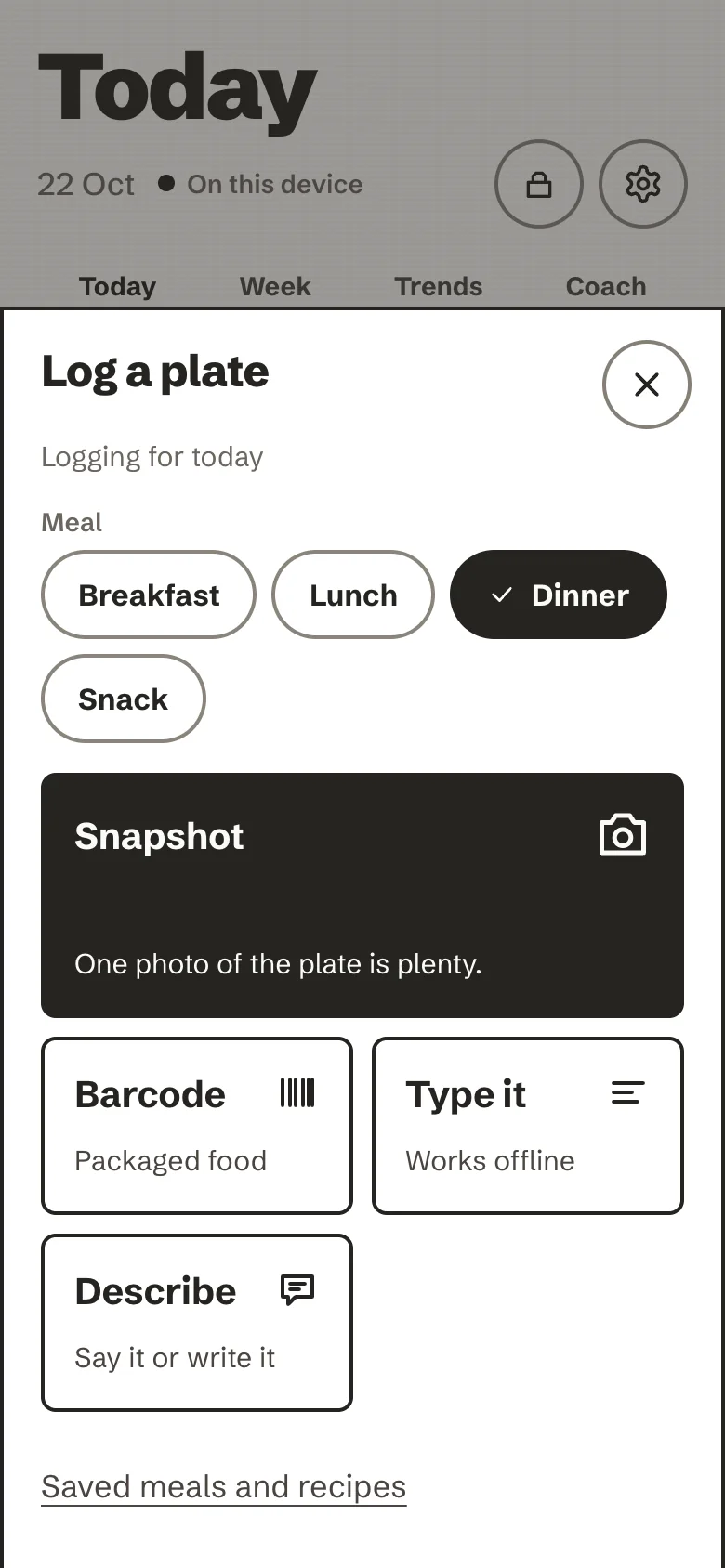
The sheet says where the plate will land: Logging for today, or Logging for yesterday (or another day) when you have selected that day in the week strip on Today. Under it, Meal lets you choose breakfast, lunch, dinner or late. It starts on the meal that is on now, or, on another day, on the first meal that has nothing in it yet. A plate logged for the meal that is on now is stamped with the time now; for another meal or day it gets that meal's usual hour (breakfast 8:00, lunch 12:00, dinner 19:00, late 23:00). So a lunch logged at 16:10 stays a lunch, and yesterday's dinner goes on yesterday. A plate is never put in the future, so on today only the meals that have started are offered. The week strip shows the last seven days, so that is how far back you can log. There is no separate snack meal: a snack goes in the nearest meal, or in late.
Type it
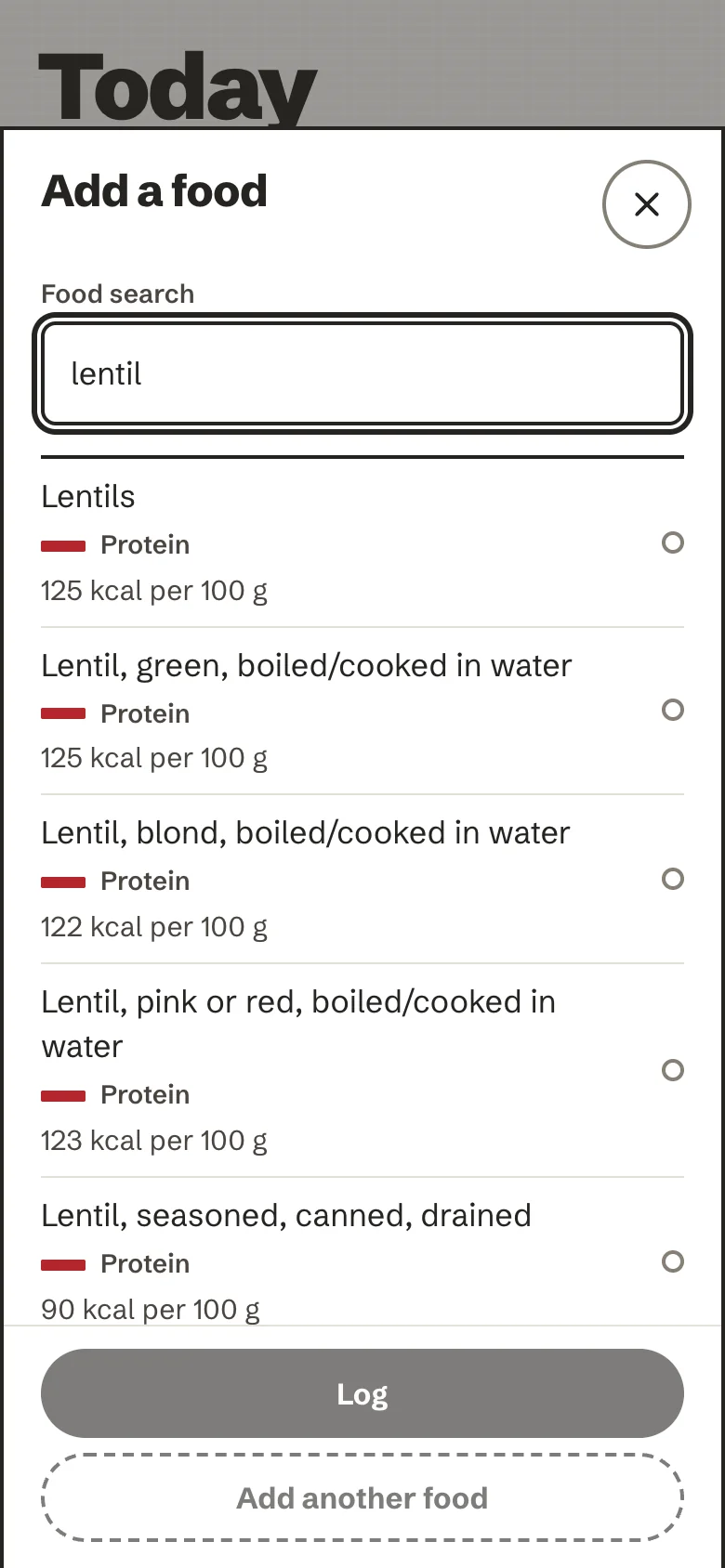
Start typing a food name and the matches are ranked as you go, from the food list built into the app: a short list of everyday foods and the CIQUAL table, about 3,500 generic foods with their nutrition per 100 g (ANSES, Etalab Open Licence 2.0). It all runs on the device, so it works without a connection.
The search field has the cursor when the sheet opens. A small slip is forgiven: a word of five letters or more that matches almost nothing is also tried with one letter added, missing, wrong or swapped ("brocolli" finds broccoli, "yogourt" finds yogurt). With numbers on, each result shows its energy per 100 g. Plain names list cooked and ready-to-eat foods before the raw ones ("chicken" starts with roast or grilled chicken); raw ones are still in the list.
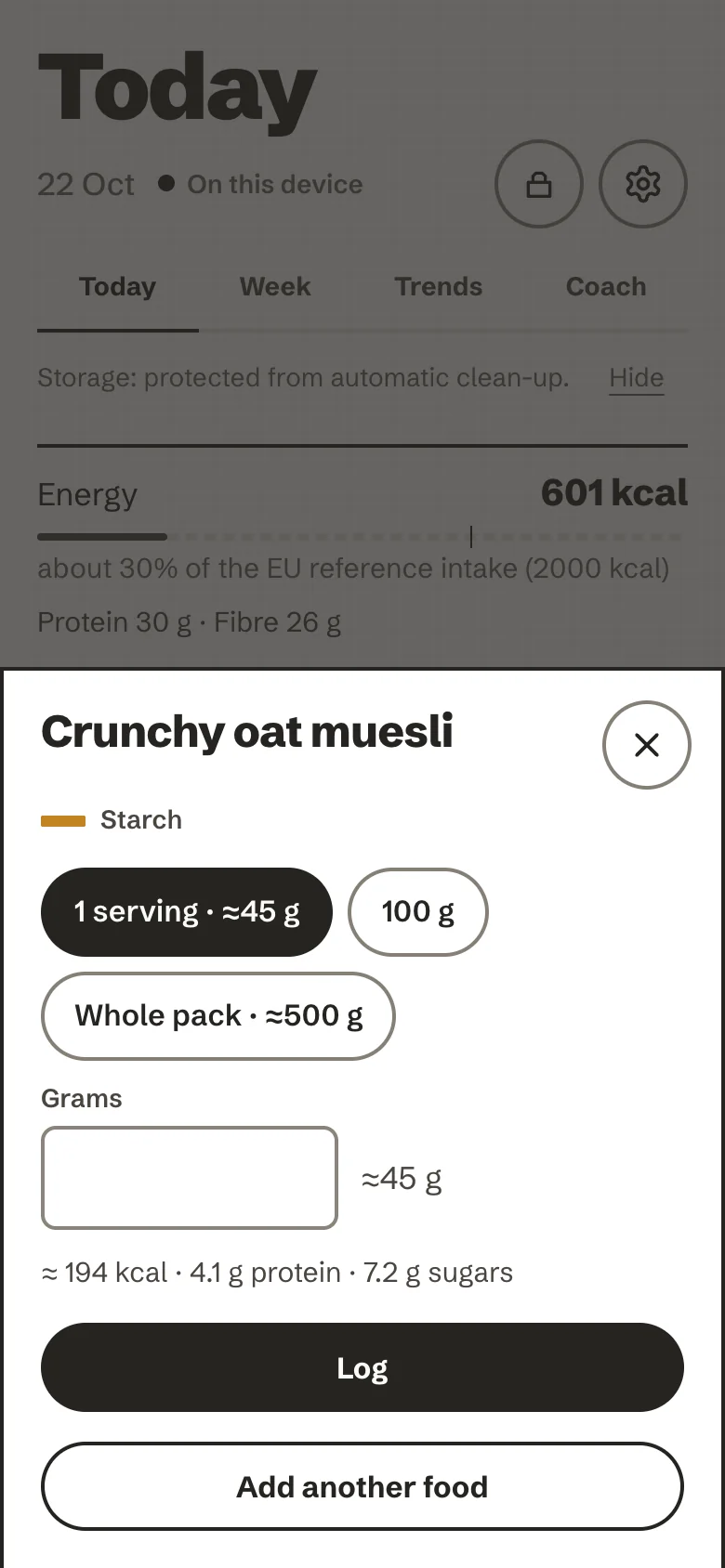
Pick a match and the list folds down to that food, with Show other results to go back, so the portion and the weight are right there. Choose a preset (small portion, one portion, large portion, 100 g, one serving, a whole pack, depending on the food) or type a weight in grams, from 0.1 to 5,000 g. A one-line preview under the grams field shows the approximate energy, protein and sugars of that amount.
One plate, several foods. Log saves that one food as a plate. Add another food puts it on the plate and empties the search for the next one. On this plate lists each food with its amount and, with numbers on, its energy, then the plate total ("at least ..." while a food has no energy). Remove takes a food off before you log; Log plate saves them all as one plate, with one coach note. After a barcode scan, Add another food does the same: the scanned food goes on the plate and Type it opens to add more.
A custom food. A name that matches nothing can be logged under its own name. Open Weight and nutrition (optional) to give its weight and any of calories, protein, carbohydrate (of which sugars), fat (of which saturates), fibre and salt, per 100 g (with the weight you ate) or per serving (with the weight of one serving). Then it counts in the totals. Values are checked: no more than 900 kcal or 100 g of anything per 100 g, sugars no more than carbohydrate, saturates no more than fat. With only a name it logs about one serving and is left out of the totals (see Nutrients in Day and week); you can complete it later by editing the plate.
Barcode
For packaged food. The camera reads the code on the device, with a pinned WebAssembly decoder; no image ever leaves it. Hold the pack about 20 cm away and fit the barcode in the box. There is a torch button where the phone has one, and Type the barcode if the code will not scan (a barcode has 8, 12 or 13 digits; the app checks that they add up).
The product is then looked up on Open Food Facts, a free, open database with no account. Only the barcode is sent, with a request for the fields the app needs. The first time, a short notice explains this and lets you choose Don't look up online; you can change it later on the privacy page.
If the product is not there, the app says so and offers to type it in, with a link to add the product to Open Food Facts yourself; the app itself posts nothing. If the camera is refused or the browser cannot read barcodes, the sheet says so calmly and Type it is one tap away.
Describe it, in words or out loud
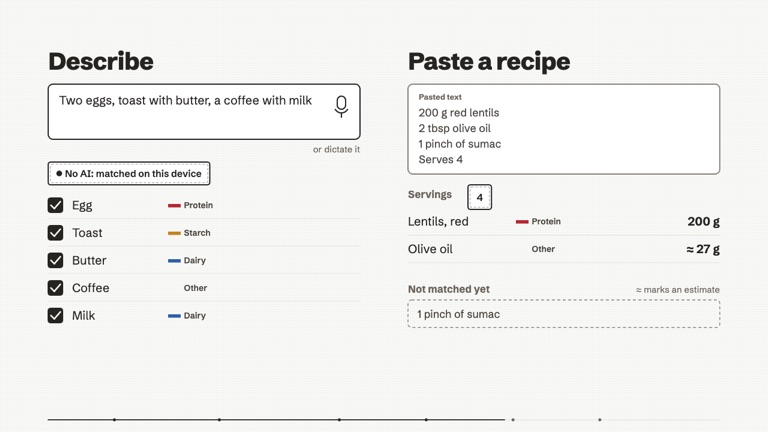
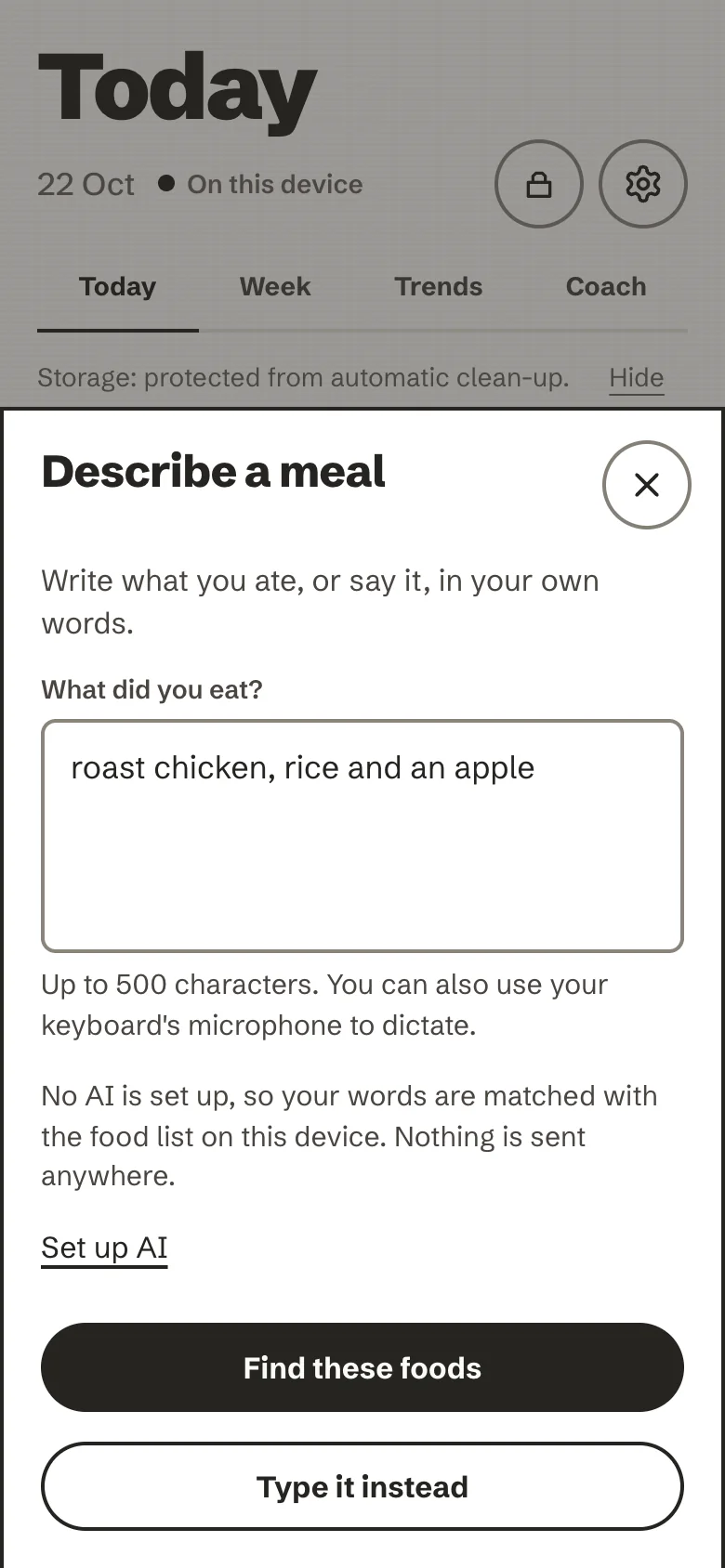
Write what you ate in your own words: "two eggs, toast with butter, a coffee with milk" (up to 500 characters). Your keyboard's own microphone can dictate it too.
- Without an AI, your words are matched with the food list on the device, and nothing is sent anywhere. A count at the start of a food multiplies its usual portion: "3 eggs", "3 œufs", "2 slices of bread", "a banana", "½ avocado", "1,5 portions". Digits, decimals, fractions and the small number words in English and French count; a weight you write ("150 g of rice") always wins over a count.
- With an AI and your yes to Describe, the words go to the AI you chose to be understood, and come back as the same reviewable list a photo gives: every food ticked, amounts to check, and any words that did not match listed so you can add them by hand.
- Talk: with an AI whose service can turn voice into text, a Talk button records up to 30 seconds. The recording is turned into text, shown to you to check, and never stored by the app.
The first time something would be sent, a card asks first and says exactly what goes, to whom: Allow or Not now. Saying no costs nothing; the words are matched on the device instead.
Paste a recipe
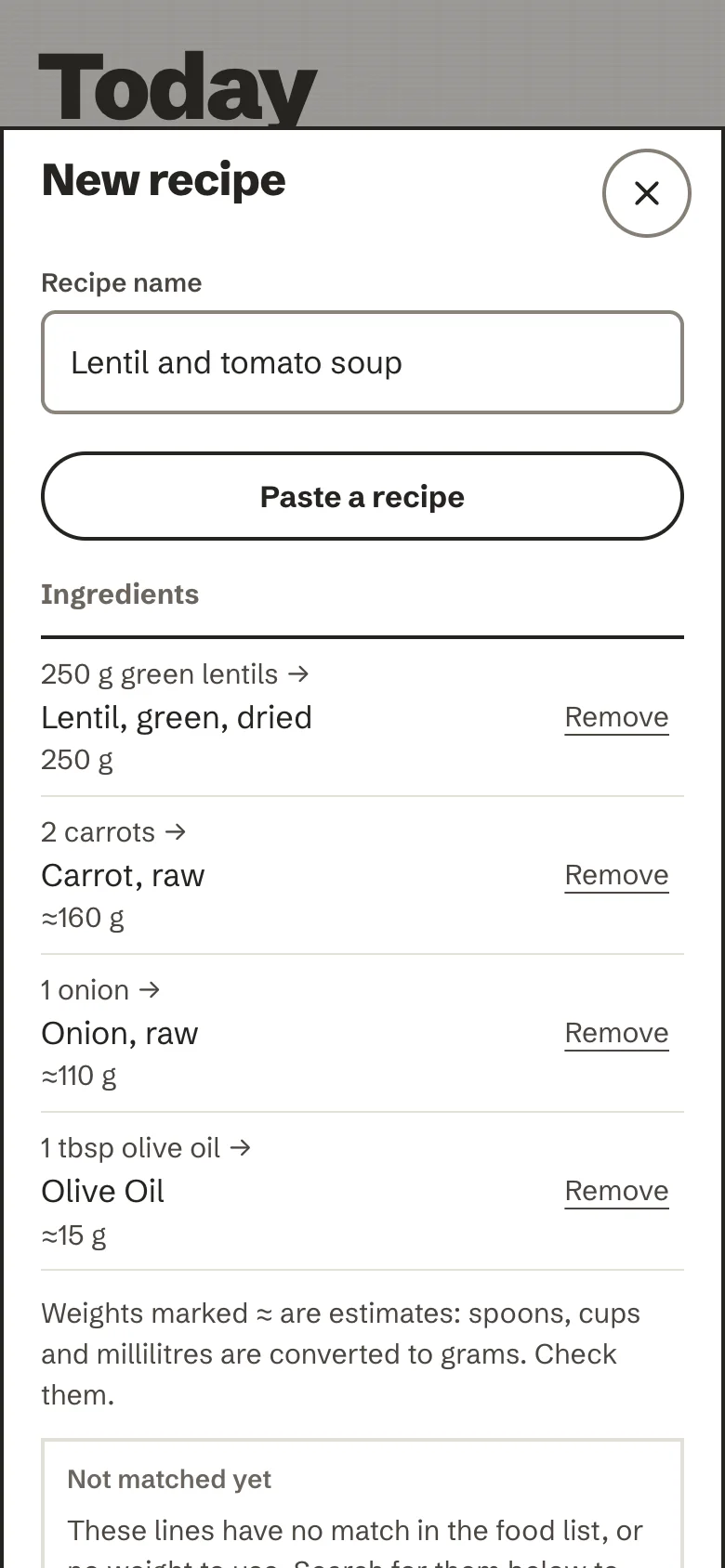
Paste the ingredients, or the whole text of a recipe page, up to 8,000 characters. Nothing is fetched from the web: a pasted address is just text. The app reads amounts, units and servings, matches each ingredient to the food list and fills in a recipe for you to check. Spoons, cups and millilitres are converted to grams and marked ≈, as estimates. Lines it could not match are listed under Not matched yet, with suggestions (Did you mean one of these?), so you can add them by hand.
With an AI and your yes to Describe, the recipe text can be read by the AI instead; if it is busy or declines, the text is read on the device.
Snapshot: one photo
With an AI connected, take or choose one photo of the plate. The AI suggests the foods, their weights and their groups; a confident match in the food list replaces the AI's own nutrient guess. Everything comes back ticked, with likely or maybe beside it: untick anything that is not on the plate, adjust the amounts, then log.
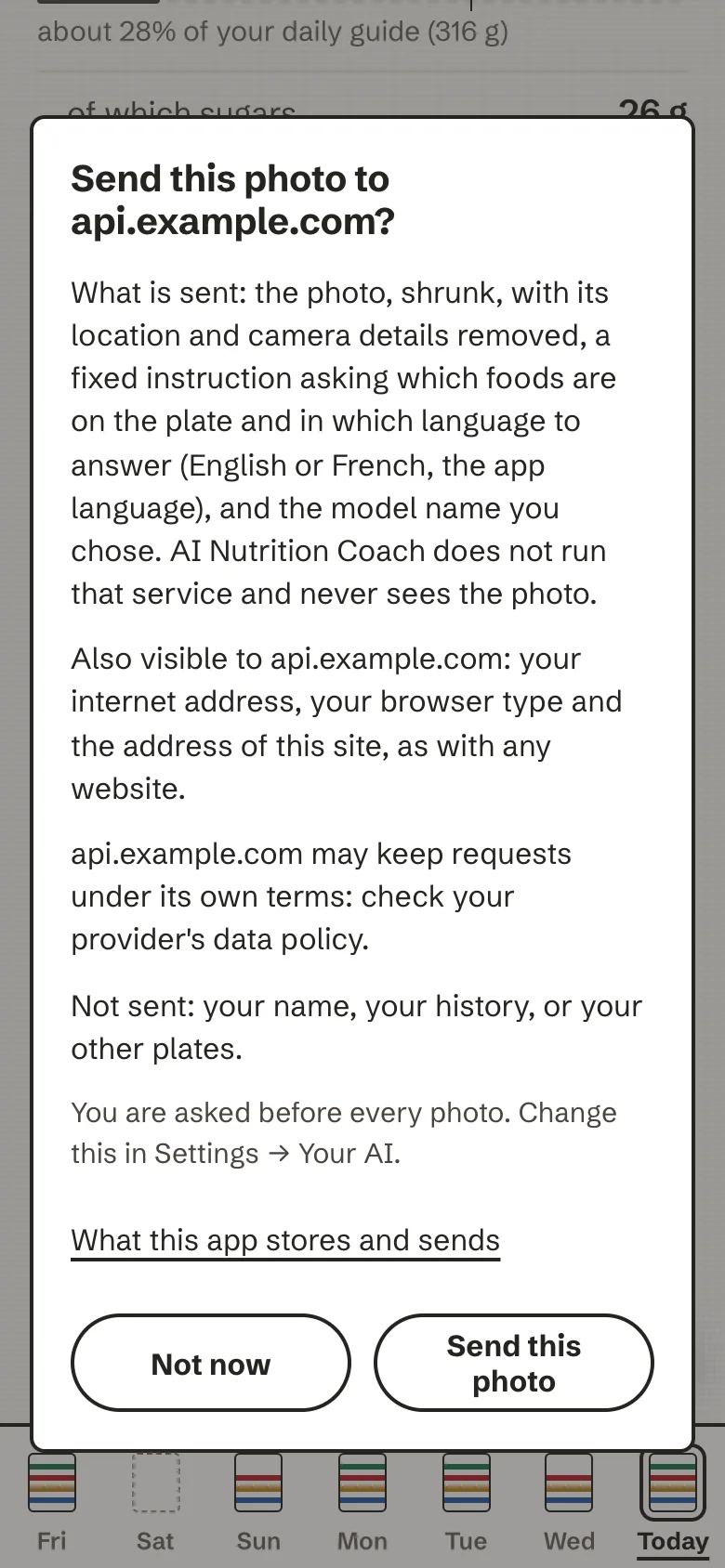
Before a photo leaves the device, it is shrunk and its location and camera details are removed. By default you are asked before every photo, with the name of the service it would go to. The photo is kept in memory only.
Without an AI, Snapshot says that photo recognition needs one, and offers your recent foods and Type it instead. Setting one up is described in Your AI.
Recent and frequent foods
Under the four ways in, the sheet lists your recent foods and the ones you log often (with how many times in the last 30 days). One tap logs a food at its usual amount; Change adjusts it first.
Saved meals and recipes
- Save as a meal: on a plate's page, keep its foods and amounts under a name, to log them again in a tap.
- New recipe: write a home recipe with its ingredients in grams, the number of servings and, if you weighed it, the cooked weight of the finished dish (it gives a closer result). The app works out the values per serving from the ingredients. When nutrition data is known for only some ingredients, it says so, rather than counting the rest as zero.
- Saved meals and recipes in the Log sheet lists both. Log a meal as it is or change an amount first; rename or delete either. Deleting a saved meal leaves the plates you already logged from it as they are.
Log it again, or copy a day
- Log this again, on any plate's page: a new plate with the same foods and amounts, on today or one of the six days before it, in the meal you choose. The original stays as it is.
- Copy this day to today, when you look at an earlier day: its plates are added to today at the same times. What is already on today stays, and a plate whose time is still ahead is not copied.
- Just after you log, a quiet + log another plate link appears for a few seconds, for the second plate of a meal.
If something does not save
The app says so in a plain sentence ("That did not save just now. Nothing was lost; you can try again.") and keeps what you entered. It never shows a spinner: a button that is working says what it is doing (Logging…).