Climate Control Guide
Learn how to control your Hitachi heat pump zones through Home Assistant climate entities.
Overview
Each zone or thermostat in your Hitachi system appears as a climate entity in Home Assistant. These entities provide full control over:
- 🌡️ Temperature - Set target temperature
- 🔥 HVAC Mode - Heat, Cool, Auto, or Off
- 💚 Preset Mode - Comfort or Eco
- 🔇 Fan Mode - Silent mode or fan speed (system dependent)
- 📊 Status - Current temperature, operation status, alarms
Entity Naming
Climate entities are named based on your system configuration:
Format: climate.{device_name}_{zone_name}
Examples: - climate.remote_living_room - climate.remote_first_floor - climate.remote_zone_1
The name combines: - Device name: From CSNet Manager (usually "Remote") - Zone name: Your configured zone/room name
Basic Controls
Setting Target Temperature
Via UI: 1. Open the climate entity card 2. Use the + and - buttons 3. Or drag the temperature slider
Via Service Call:
service: climate.set_temperature
target:
  entity_id: climate.remote_living_room
data:
  temperature: 22
Via Automation:
automation:
  - alias: "Set Morning Temperature"
    trigger:
      - platform: time
        at: "07:00:00"
    action:
      - service: climate.set_temperature
        target:
          entity_id: climate.remote_living_room
        data:
          temperature: 21
Temperature Range: - Heating: Typically 8°C to 55°C - Cooling: Typically 18°C to 30°C - DHW: Typically 30°C to 55°C - Exact ranges vary by system configuration
Changing HVAC Mode
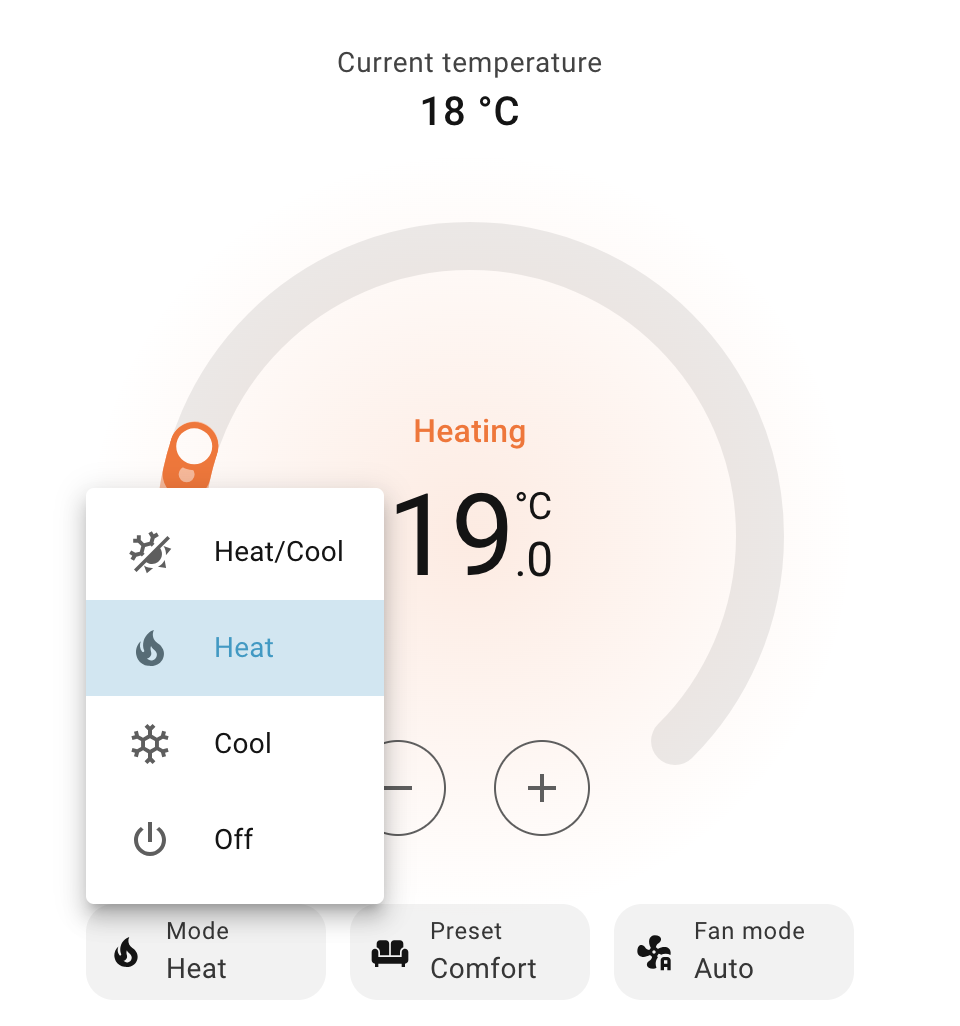
Available modes depend on your system:
| Mode | Description | When to Use |
|---|---|---|
| Off | System off, no heating or cooling | When you don't need climate control |
| Heat | Heating mode only | Cold weather, winter |
| Cool | Cooling mode only | Hot weather, summer (if supported) |
| Heat/Cool (Auto) | Automatic heating/cooling | Transitional seasons, maintains comfort automatically |
Via UI: 1. Click on climate entity 2. Click the mode button (shows current mode) 3. Select desired mode
Via Service Call:
Via Automation:
automation:
  - alias: "Winter Mode"
    trigger:
      - platform: numeric_state
        entity_id: sensor.system_controller_outdoor_temperature
        below: 15
    action:
      - service: climate.set_hvac_mode
        target:
          entity_id: climate.remote_living_room
        data:
          hvac_mode: heat
Turning On/Off
Quick On/Off:
# Turn on
service: climate.turn_on
target:
  entity_id: climate.remote_living_room

# Turn off
service: climate.turn_off
target:
  entity_id: climate.remote_living_room
Note: turn_on will restore the last active mode (Heat, Cool, or Auto).
Using Preset Modes
Preset modes adjust the target temperature for energy savings:
| Preset | Description | Temperature Adjustment |
|---|---|---|
| Comfort | Normal comfort temperature | Full target temperature |
| Eco | Energy-saving mode | Reduced temperature (~2-3°C lower in heating) |
Via UI: 1. Open climate entity 2. Click Preset button 3. Select Comfort or Eco
Via Service Call:
service: climate.set_preset_mode
target:
  entity_id: climate.remote_living_room
data:
  preset_mode: eco
Via Automation (Eco mode at night):
automation:
  - alias: "Night Eco Mode"
    trigger:
      - platform: time
        at: "23:00:00"
    action:
      - service: climate.set_preset_mode
        target:
          entity_id: climate.remote_living_room
        data:
          preset_mode: eco

  - alias: "Morning Comfort Mode"
    trigger:
      - platform: time
        at: "06:30:00"
    action:
      - service: climate.set_preset_mode
        target:
          entity_id: climate.remote_living_room
        data:
          preset_mode: comfort
Advanced Controls
Fan Mode Control
Fan mode behavior depends on your system type:
Non-Fan Coil Systems (Standard)
Silent Mode - Reduces outdoor unit noise: - Auto = Normal operation - On = Silent mode enabled
service: climate.set_fan_mode
target:
  entity_id: climate.remote_living_room
data:
  fan_mode: "on"  # Silent mode
Fan Coil Systems
Fan Speed Control: - Off = Fan off - Low = Low speed - Medium = Medium speed - Auto = Automatic speed
Checking System Type:
Look at the climate entity attributes:
is_fan_coil_compatible: true  # or false
fan_modes: ["off", "low", "medium", "auto"]  # Fan coil
fan_modes: ["auto", "on"]  # Standard (silent mode)
Fixed Water Temperature Control (Water Circuits Only)
For water circuits (C1 Water and C2 Water), you can control the fixed water supply temperature when your system is configured in Fixed Temperature mode (OTC type = FIX).
Understanding OTC (Outdoor Temperature Compensation)
Your Hitachi system can operate in different OTC (Outdoor Temperature Compensation) modes:
- Fixed Mode (FIX): Water temperature is set to a fixed value you control
- Gradient/Points Mode: Water temperature is automatically calculated based on outdoor temperature
Important: Fixed water temperature control is only available when OTC type is set to FIX. If your system uses Gradient or Points mode, the water temperature is automatically calculated and cannot be manually set.
Checking Your OTC Mode
Check your climate entity attributes to see your current OTC mode:
# For C1 circuit
otc_heating_type: 3  # 3 = Fixed mode
otc_heating_type_name: "Fixed"

# For C2 circuit
otc_heating_type_c2: 3
otc_heating_type_name_c2: "Fixed"
OTC Type Values: - Heating: None (0), Points (1), Gradient (2), Fixed (3) - Cooling: None (0), Points (1), Fixed (2)
Number Entities for Fixed Water Temperature
When your system is in Fixed mode (OTC = FIX), number entities automatically appear for controlling the fixed water temperature:
Entity Names: - number.{zone_name}_fixed_water_temperature_heating_c1 - C1 heating mode - number.{zone_name}_fixed_water_temperature_cooling_c1 - C1 cooling mode - number.{zone_name}_fixed_water_temperature_heating_c2 - C2 heating mode - number.{zone_name}_fixed_water_temperature_cooling_c2 - C2 cooling mode
Examples: - number.salon_fixed_water_temperature_heating_c1 - number.bibliotheque_fixed_water_temperature_cooling_c2
Note: These entities are circuit-level settings that affect both air zones (1,2) and water zones (5,6) of the same circuit. The fixed water temperature controls the water supply temperature for the entire circuit.
Using Fixed Water Temperature Control
Via UI: 1. Open the number entity (e.g., number.salon_fixed_water_temperature_heating_c1) 2. Adjust the temperature value 3. The value is saved automatically
Via Service Call:
service: number.set_value
target:
  entity_id: number.salon_fixed_water_temperature_heating_c1
data:
  value: 45  # Set fixed water temperature to 45°C
Via Automation:
automation:
  - alias: "Set Fixed Water Temperature for Winter"
    trigger:
      - platform: time
        at: "06:00:00"
    action:
      - service: number.set_value
        target:
          entity_id: number.salon_fixed_water_temperature_heating_c1
        data:
          value: 50  # Higher temperature for cold days

  - alias: "Set Fixed Water Temperature for Spring"
    trigger:
      - platform: time
        at: "20:00:00"
    condition:
      - condition: numeric_state
        entity_id: sensor.system_controller_outdoor_temperature
        above: 15
    action:
      - service: number.set_value
        target:
          entity_id: number.salon_fixed_water_temperature_heating_c1
        data:
          value: 40  # Lower temperature for milder weather
Climate Entity Behavior for Water Circuits
For water zones (zone_id 5 = C1 Water, zone_id 6 = C2 Water):
- When OTC type is FIX: The climate entity's
target_temperatureshows the fixed water temperature and can be edited - When OTC type is NOT FIX (Gradient/Points): The climate entity's
target_temperaturereturnsNone(unavailable) since the temperature is automatically calculated
For air zones (zone_id 1 = C1 Air, zone_id 2 = C2 Air): - The climate entity's target_temperature always shows the room temperature (settingTempRoomZ1/Z2) and is always editable - Fixed water temperature is controlled via the separate number entity (when OTC is FIX) - Room temperature and fixed water temperature are independent settings
Temperature Range
Fixed water temperature typically ranges from: - Heating: 20°C to 80°C (varies by system) - Cooling: 10°C to 30°C (varies by system)
Check the number entity's min and max attributes for your system's exact range.
Why Don't I See the Number Entity?
If you don't see the fixed water temperature number entity, it's because:
- Your OTC type is NOT FIX - The entity only appears when OTC type is FIX
- System not in Fixed mode - Check your climate entity attributes to see your current OTC type
- Entity not created yet - The entity appears automatically when conditions are met
To enable fixed temperature control: - Change your OTC type to FIX in the CSNet Manager app or website - The number entity will appear automatically after the next integration update
Example: Seasonal Temperature Adjustment
automation:
  - alias: "Winter Fixed Water Temperature"
    trigger:
      - platform: numeric_state
        entity_id: sensor.system_controller_outdoor_temperature
        below: 5
        for: "01:00:00"
    action:
      - service: number.set_value
        target:
          entity_id: number.salon_fixed_water_temperature_heating_c1
        data:
          value: 55  # Higher temperature for cold weather

  - alias: "Spring Fixed Water Temperature"
    trigger:
      - platform: numeric_state
        entity_id: sensor.system_controller_outdoor_temperature
        above: 15
        for: "01:00:00"
    action:
      - service: number.set_value
        target:
          entity_id: number.salon_fixed_water_temperature_heating_c1
        data:
          value: 40  # Lower temperature for milder weather
Troubleshooting
Entity Not Available: - Check that OTC type is FIX in climate entity attributes - Verify the number entity exists in Home Assistant - Check integration logs for errors
Temperature Not Changing: - Ensure OTC type is FIX (not Gradient/Points) - Check that the number entity is available - Verify the value is within the allowed range (check min/max)
Want to Use Fixed Mode: - Change OTC type to FIX in CSNet Manager app/website - The number entity will appear automatically - You can then set fixed water temperature via Home Assistant
Reading Climate State
Current Temperature
The actual measured temperature in the zone:
Target Temperature
The desired temperature setpoint:
HVAC Action
What the system is currently doing:
- heating - Actively heating
- cooling - Actively cooling
- idle - On but not actively heating/cooling
- off - System is off
Example Automation (based on action):
automation:
  - alias: "Alert When Heating"
    trigger:
      - platform: state
        entity_id: climate.remote_living_room
        attribute: hvac_action
        to: "heating"
    action:
      - service: notify.mobile_app
        data:
          message: "Heating started in living room"
Extended Attributes
Climate entities provide additional information as attributes:
Operation Status
Detailed operation status from the heat pump:
Status Codes: - 0 - Off - 1 - Cooling Demand Off - 2 - Cooling Thermostat Off - 3 - Cooling Thermostat On - 4 - Heating Demand Off - 5 - Heating Thermostat Off - 6 - Heating Thermostat On - 7 - DHW Off - 8 - DHW On - 11 - Alarm
Real Mode
The actual operating mode (may differ from set mode in Auto):
Circuit Demand
Shows which circuits are calling for heat/cool:
Boost Status
Indicates if boost mode is active:
Alarm Information
Current alarm status:
Silent Mode Status
Current silent mode setting (non-fan coil):
Fan Speeds (Fan Coil Only)
Current fan speeds for each circuit:
fan1_speed: 3  # C1 fan speed (0-3)
fan2_speed: 2  # C2 fan speed (0-3)
fan1_control_available: true
fan2_control_available: true
OTC Information
Outdoor Temperature Compensation settings:
otc_heating_type: 1
otc_heating_type_name: "Points"
otc_cooling_type: 0
otc_cooling_type_name: "None"
OTC Types: - Heating: None (0), Points (1), Gradient (2), Fixed (3) - Cooling: None (0), Points (1), Fixed (2)
Complete Attributes Example
climate.remote_living_room:
  state: heat
  attributes:
    current_temperature: 20.5
    temperature: 22.0
    target_temp_high: null
    target_temp_low: null
    hvac_modes:
      - "off"
      - heat
      - cool
      - heat_cool
    min_temp: 8
    max_temp: 55
    preset_modes:
      - comfort
      - eco
    preset_mode: comfort
    hvac_action: heating
    fan_modes:
      - auto
      - "on"
    fan_mode: auto
    real_mode: 1
    operation_status: 6
    operation_status_text: "Heating Thermostat On"
    timer_running: false
    alarm_code: 0
    c1_demand: true
    c2_demand: false
    doingBoost: false
    silent_mode: 0
    is_fan_coil_compatible: false
Lovelace UI Examples
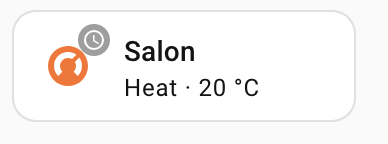
Basic Thermostat Card
Detailed Climate Card
type: vertical-stack
cards:
  - type: thermostat
    entity: climate.remote_living_room

  - type: entities
    entities:
      - entity: sensor.remote_living_room_current_temperature
        name: Current Temperature
      - entity: sensor.remote_living_room_target_temperature
        name: Target Temperature
      - entity: climate.remote_living_room
        type: attribute
        attribute: hvac_action
        name: Action
      - entity: climate.remote_living_room
        type: attribute
        attribute: operation_status_text
        name: Status
Custom Button Card (with custom:button-card)
type: custom:button-card
entity: climate.remote_living_room
name: Living Room
show_state: true
show_icon: true
tap_action:
  action: more-info
state_display: |
  [[[ return entity.attributes.current_temperature + '°C → ' +
      entity.attributes.temperature + '°C' ]]]
styles:
  card:
    - height: 100px
  state:
    - font-size: 14px
Climate Control Panel
type: vertical-stack
cards:
  - type: markdown
    content: "## Living Room Climate"

  - type: horizontal-stack
    cards:
      - type: button
        name: "Comfort"
        icon: mdi:home-thermometer
        tap_action:
          action: call-service
          service: climate.set_preset_mode
          service_data:
            entity_id: climate.remote_living_room
            preset_mode: comfort

      - type: button
        name: "Eco"
        icon: mdi:leaf
        tap_action:
          action: call-service
          service: climate.set_preset_mode
          service_data:
            entity_id: climate.remote_living_room
            preset_mode: eco

      - type: button
        name: "Off"
        icon: mdi:power
        tap_action:
          action: call-service
          service: climate.turn_off
          service_data:
            entity_id: climate.remote_living_room

  - type: thermostat
    entity: climate.remote_living_room
Common Automation Examples
Temperature Schedule
automation:
  - alias: "Living Room Temperature Schedule"
    trigger:
      - platform: time
        at: "06:00:00"
        id: morning
      - platform: time
        at: "09:00:00"
        id: day
      - platform: time
        at: "17:00:00"
        id: evening
      - platform: time
        at: "23:00:00"
        id: night
    action:
      - choose:
          - conditions:
              - condition: trigger
                id: morning
            sequence:
              - service: climate.set_temperature
                target:
                  entity_id: climate.remote_living_room
                data:
                  temperature: 21
              - service: climate.set_preset_mode
                target:
                  entity_id: climate.remote_living_room
                data:
                  preset_mode: comfort

          - conditions:
              - condition: trigger
                id: day
            sequence:
              - service: climate.set_temperature
                target:
                  entity_id: climate.remote_living_room
                data:
                  temperature: 20
              - service: climate.set_preset_mode
                target:
                  entity_id: climate.remote_living_room
                data:
                  preset_mode: eco

          - conditions:
              - condition: trigger
                id: evening
            sequence:
              - service: climate.set_temperature
                target:
                  entity_id: climate.remote_living_room
                data:
                  temperature: 22
              - service: climate.set_preset_mode
                target:
                  entity_id: climate.remote_living_room
                data:
                  preset_mode: comfort

          - conditions:
              - condition: trigger
                id: night
            sequence:
              - service: climate.set_temperature
                target:
                  entity_id: climate.remote_living_room
                data:
                  temperature: 18
              - service: climate.set_preset_mode
                target:
                  entity_id: climate.remote_living_room
                data:
                  preset_mode: eco
Away Mode
automation:
  - alias: "Away Mode - Turn Off Heating"
    trigger:
      - platform: state
        entity_id: person.home_owner
        to: "not_home"
        for: "01:00:00"
    action:
      - service: climate.turn_off
        target:
          entity_id: all

  - alias: "Return Home - Resume Heating"
    trigger:
      - platform: state
        entity_id: person.home_owner
        to: "home"
    action:
      - service: climate.turn_on
        target:
          entity_id: all
      - service: climate.set_temperature
        target:
          entity_id: climate.remote_living_room
        data:
          temperature: 21
Weather-Based Control
automation:
  - alias: "Switch to Cooling on Hot Days"
    trigger:
      - platform: numeric_state
        entity_id: weather.home
        attribute: temperature
        above: 25
    condition:
      - condition: state
        entity_id: climate.remote_living_room
        state: heat
    action:
      - service: climate.set_hvac_mode
        target:
          entity_id: climate.remote_living_room
        data:
          hvac_mode: cool
      - service: climate.set_temperature
        target:
          entity_id: climate.remote_living_room
        data:
          temperature: 24
Energy Saving
automation:
  - alias: "Eco Mode During Peak Hours"
    trigger:
      - platform: time
        at: "17:00:00"
    condition:
      - condition: time
        weekday:
          - mon
          - tue
          - wed
          - thu
          - fri
    action:
      - service: climate.set_preset_mode
        target:
          entity_id: all
        data:
          preset_mode: eco

  - alias: "Comfort Mode After Peak Hours"
    trigger:
      - platform: time
        at: "21:00:00"
    action:
      - service: climate.set_preset_mode
        target:
          entity_id: all
        data:
          preset_mode: comfort
Troubleshooting
Temperature Not Changing
Symptoms: Set temperature but nothing happens
Possible Causes: 1. System is off - Check HVAC mode 2. Temperature already reached - Check current vs target 3. Eco mode active - May use different setpoint 4. Manual override - Someone changed it at the physical thermostat
Solutions: - Ensure HVAC mode is Heat or Cool (not Off) - Check operation_status attribute - Try toggling between Comfort and Eco - Check CSNet Manager app for manual overrides
Controls Not Responding
Symptoms: Commands sent but no effect
Possible Causes: 1. Connection lost - Check connectivity sensor 2. CSNet Manager offline - Service issue 3. Device offline - Check WiFi signal
Solutions: - Check sensor.{device}_connectivity status - Verify internet connection - Check sensor.{device}_wifi_signal strength - Restart integration if needed
Wrong Temperature Reading
Symptoms: Current temperature seems incorrect
Possible Causes: 1. Sensor location - Thermostat placement 2. Sync delay - Updates every scan_interval 3. Unit configuration - Check CSNet Manager
Solutions: - Wait for next update cycle (default 60 seconds) - Compare with CSNet Manager app - Check physical thermostat location - Calibrate sensor if needed (via CSNet Manager)
Tips & Best Practices
✅ DO
- Use Eco mode when sleeping or away for energy savings
- Set realistic temperatures (20-22°C for comfort in winter)
- Use schedules to automate daily routines
- Monitor alarm_code attribute for system issues
- Check operation_status_text to understand system state
- Use silent mode at night to reduce noise
❌ DON'T
- Don't change temperature too frequently (< every 5 minutes)
- Don't set extreme temperatures (system won't heat/cool faster)
- Don't turn on/off repeatedly (causes wear)
- Don't ignore alarms (check alarm messages promptly)
- Don't set scan_interval < 30 seconds (may hit rate limits)
💡 Pro Tips
- Use presets instead of temperature changes for energy savings
- Monitor hvac_action to see when actually heating/cooling
- Check c1_demand/c2_demand in multi-zone to see which zones need heat
- Use operation_status_text for detailed system state
- Enable debug logging when troubleshooting
- Group zones in the same area for coordinated control
Next Steps
Learn more about related features: - Water Heater Control - Control your DHW system - Sensors Reference - All available sensors - Advanced Features - Silent mode, fan control, OTC - Multi-Zone Configuration - Managing multiple circuits - Troubleshooting - Common issues and solutions